Are you tired of always typing in your password when you log into your computer? While it only takes a couple of moments, I always seem to switch a couple letters and must enter it more than once. Well, I have some great news for you. Windows lets you log in by simply using a six-digit PIN. Yeah, I know six-digits is a lot, but six numbers are a lot better than a bunch of letters, numbers, and a special character.
Follow the instructions below for how to set up your PIN. Please reach out if you have any questions. Also, remember you can always lock your computer with the shortcut key: Win + L. (Typically near the space-bar.)
Ever Advancing, Ralph
Set Up a PIN for Faster Login to Any Windows 10 Computer - Watch the Video
Step-By-Step Instructions
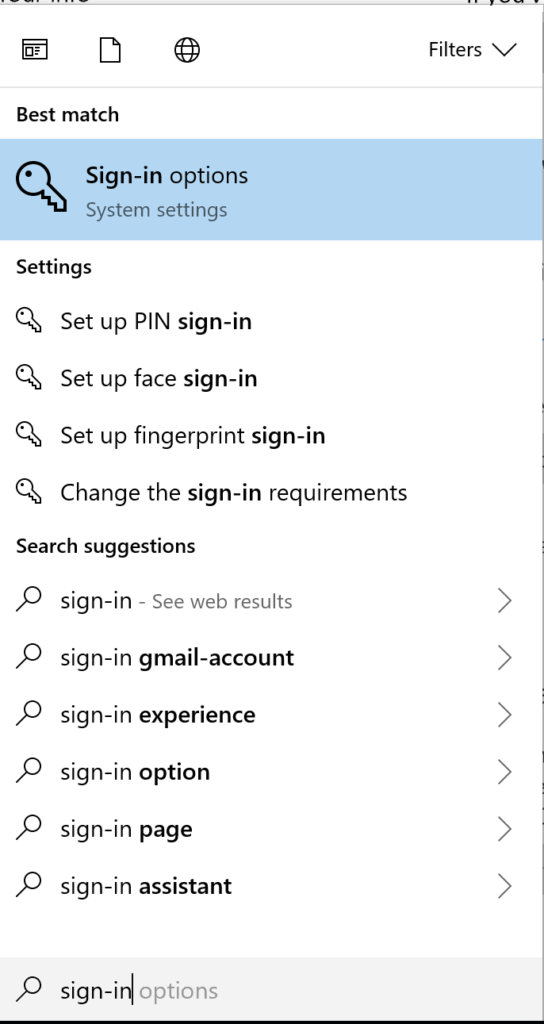
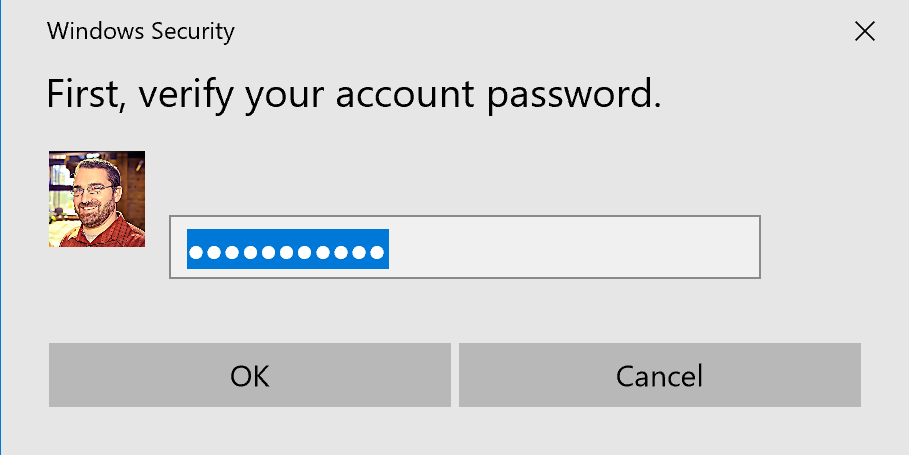
Tap your windows key (or click start) and type “Sign-in.” “Sign-in Options” should be highlighted in your list. When highlighted, press “Enter.”
Under “PIN”, select “Add”.
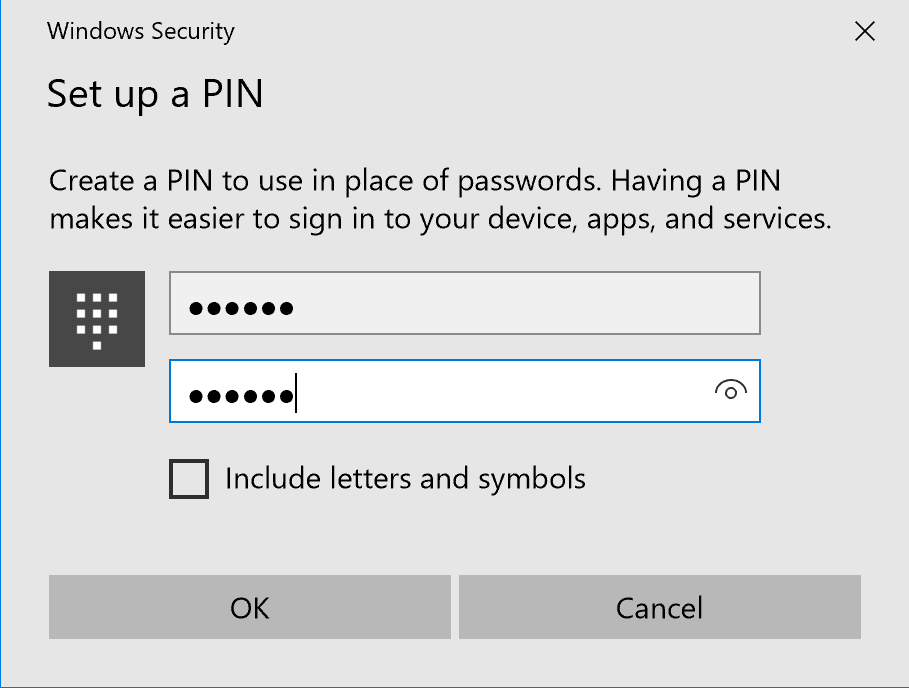
Create a 6-digit PIN and select “OK”
You are all done. You can now use a PIN to login.
If you forget your PIN, you can always switch back by clicking “sign-in options” on the lock screen and selecting the key to use your password.
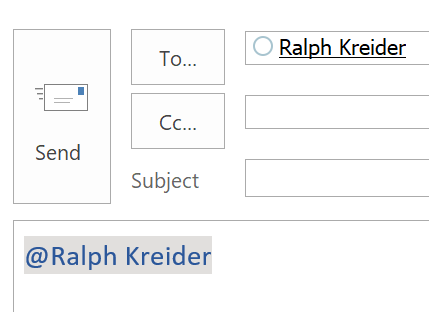
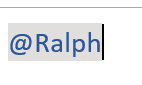
Did you know that you can tag people in emails? If you type the “@” symbol and then begin typing someone’s name Outlook will allow you to tag them.
Once you find the name of the person you want email press enter; Outlook will finish writing out the name for you and automatically add that person’s email in the “TO” box.
This is a great tool for communicating assignments to multiple people on a project in a single message. By default, it will place the person’s whole name but you can easily delete everything but the first name by pressing “backspace”.
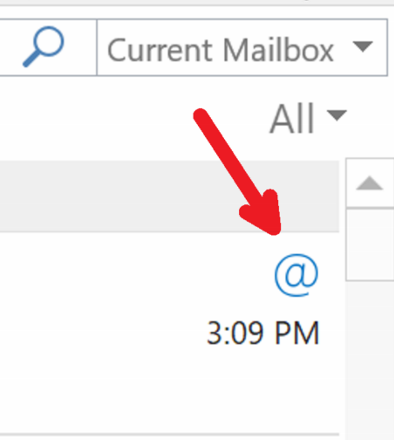
When the recipient receives the email there will be an “@” symbol next to where you would flag the email (right side of the preview box above the date) so that they can clearly see that they were mentioned.
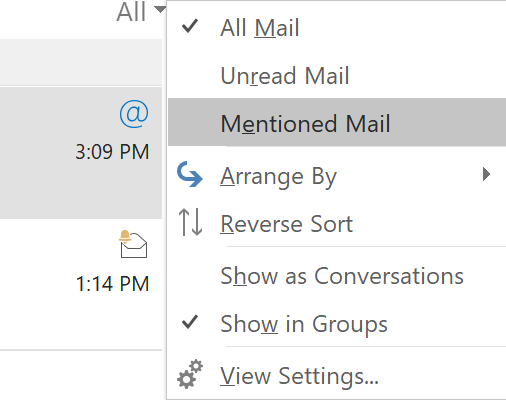
In your inbox, you can sort by “Mentioned Mail” to show only emails you have been tagged in.
If you want to use the “@” symbol but don’t want to use mentions just hit the “Esc” key. Another benefit is that their contact becomes clickable in the body of the email so anyone copied on the email can very quickly send them a Skype message or a private email. Find out more about @Mentions over at Microsoft. If you think you will ever use this tip, please like it and share it with a friend. As always, reach out if you have any questions. Ever Advancing, Ralph