
TECH STEP
TECH STEP
Procore – Locations – Let’s Get More Consisent
Are you making the most of Procore’s location features? Chances are, you’re not fully utilizing them.
Why are locations important? They pinpoint exactly where issues or opportunities exist on a project, making it easier to address them on the go using mobile devices. While locations can be used in various tools, they are especially crucial in RFIs, Daily Logs, Observations, Inspections, and Punchlists. (They’re also useful in tools like Photos, Submittals, Incidents, Change Events, and Correspondence.)
Now, let’s break down the ideal structure for locations when setting up your project:
- Project (Project Number – Project Name): This serves as a summary location for everything on the project and is always required in field sets.
- Buildings and Site Areas (Building Number – Building Name): Divide your project into buildings and outdoor areas, like E9 – McKean Hall or ET – East Tennis Courts.
- Wings / Zones / Areas (Zone Number – Zone Name): For larger buildings constructed in phases, consider breaking them into zones, such as Main Gym, Locker Rooms/Offices, Central Wing, Racketball, South Gym/Wrestling. Avoid including construction phases since they overlap the same physical location and become irrelevant after project completion.
- Levels (Level Number – Level Name): Divide your building into levels, including underground, basement, and roofs. Examples include -02 – Underground, -01 Basement, 01 – Arena Floor, 02 – Seating, 03 – Mezzanine, 04 – Lower Roof, 05 – Upper Roof.
- Units / Room Groups (Unit Number – Unit Name Unit Type): If you have groups of rooms, like a hospital department (e.g., ER – Emergency) or 101 – 2BR Apt, create tiers for these units.
- Rooms (Room Number – Room Name): Specify the names of individual rooms within spaces.
- Sub Rooms (Number – Sub Room Names): In some cases, divide large rooms into smaller ones, for instance, in cafes, restaurants, or convention/meeting spaces.
Pro tip: Always begin location names with a number or letter for better organization and searchability.
What are your thoughts? Did I miss anything important?
Setting Up Locations
To drive consistency, setup location within Location manager with these steps:
- Open Procore and navigate to your Project.
- Under Core Tools in the Project Tools section, select Admin.
- In the Sidebar, go to Project Settings section and then select Locations.
- Find the gray + 1st Tier box at the top left, click it, and enter the first tier based on your location
- breakdown structure (Typically your project number – project name). Press Enter.

- Now, select the project name item in the 1st tier, and enter buildings (or other relevant site locations) in the +2nd Tier Box based on your organization. Repeat this for additional buildings and site spaces as needed.
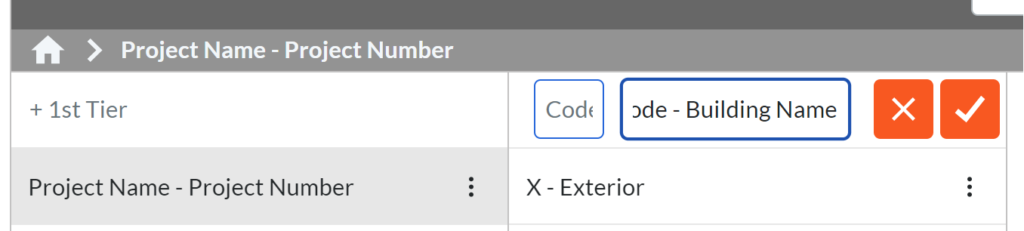
- Continue creating tiers for all other location levels in your organization.
Important tip: Don’t forget to check the “Only allow locations to be created in the Location Manager above” box at the bottom of the screen if you want to restrict location creation to the Location Manager.
These steps should help you efficiently set up locations in Procore while ensuring consistency throughout your project and organization. See Procore Support for more details
Best Practices
- Require locations in key fieldsets to require location, like daily logs, observations, and punch lists.
- Use Procore’s Import tool to create and update locations efficiently.
- Generate QR codes for easy field access and place them:
- On door jambs before door placement (cover with clear tape).
- Below door hinges after painting (on painter’s tape).
- On the back of panel doors after turnover.
If you want me to prioritize one of these best practices for a tech tip, please let me know in the comments.
Why is my Bluebeam so Slow – Bluebeam 2018
A couple years ago, I put together a post on how to make your Bluebeam faster. It has since turned into my number one post. So it thought I should spend a few minutes updating the post for Bluebeam 2018. My understanding is that this should be a lot better in Bluebeam 2019.
From what I have seen is that Bluebeam’s default preferences (the render setting) are supposed to make viewing faster, but typically slows it down. By changing your rendering settings in preferences, you can increase the speed at which your pages typically load. See below for details how to update your preferences. I have also included a couple other preferences changes I recommend.
What are your preferences that you update? Add them to the comments
Ever Advancing,
Ralph
Find Your Preferences
- Open Bluebeam
- Press Ctrl+K
- Or select Revu > Preferences.
Update Rendering Settings
- Select Advanced > Select 2D Rendering.
- Change Rendering Engine: to Advanced (Skia). Note, this may mess up a few other setting such at exporting to excel and word.
- Change Rendering Mode: to Wait for completion to improve overall load time.
Other preferences you might consider
General Recommendations
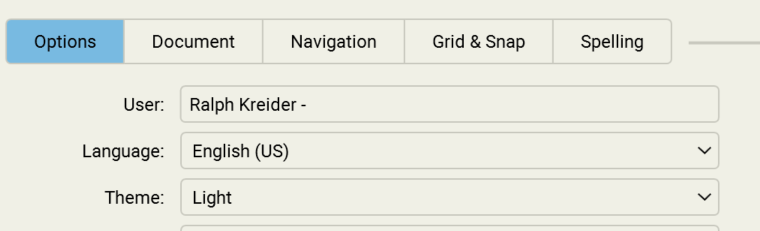
- Select General > Select Options.
- In User:, enter Your Full Name – Company. This will help with comments.
- In Theme, choose a “Light” or “Dark“. I prefer the “Light” theme.
Navigation
- Select General > select Navigation.
- Update Single Page Mode to scroll. This will allow the mouse scroll wheel to move from page to page in both Single Page and Continuous page view model. Use Ctrl + Scroll wheel to zoom.
Grid & Snap
- Select “General” > select “Grid & Snap“.
- Check “Snap to Content” to improve snapping for measuring and other markups.
Other Preferences
Take some time to try out difference preferences to make Bluebeam work the best for you.
- Window – WebTab – Uncheck open PDf Hyperlinks in WebTabs.
Tech Tip – Outlook – Conversations – Love Them or Hate Them?
I want to know. Do you love or hate conversation view (threaded email) in Outlook and other email clients? I believe it saves you a lot of time trying to find related emails and make it less likely to respond email that is not the latest. There are a few tricks that you should use to make conversations even better. Let me know in the comments if you love or hate conversation view?
As always, reach out if you have any questions.
Ever Advancing,
Ralph
Turn on conversations in Outlook
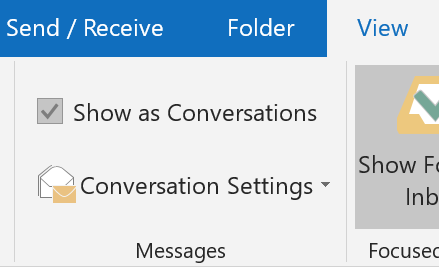
In your inbox, select “View” > “Show as Conversations” to turn on and off
Select “All mailboxes” or “This folder”. I suggest all mailboxes.
Manage Your Conversations
Once conversations are turned on, conversations with multiple messages will have a little arrow next to the message. Click the arrow next to the message see all messages within the conversation. The unread messages will be in bold.
Note, you can archive or move all messages in the conversation by acting upon the primary (or latest message) in the thread. Archive or move individual messages, by select each sub-message.
Also note, that by default, when a new message comes in for a conversation, it will appear in your inbox, even if you moved previous messages. You can even still see the other messages under the conversation.
Get Your Options Right
- There are a bunch of options to optimize your conversations.
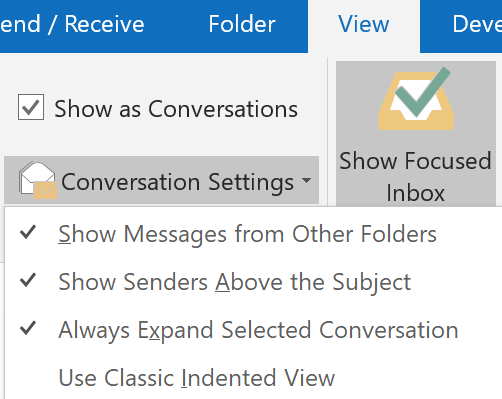
- To find your conversations, select “View” > “Conversations Settings”
- Above you will see I have selected, but if you did not just want to follow my choices, here is a brief description of each:
- Show Messages from Other Folders – Show messages related to the conversation even if they are in a different folder.
- Show Senders Above the Subject Selecting – Simply makes the author of the message more prominent.
- Always Expand Selected Conversation – This one was new to me, but so far a love it. It saves a click by auto-expanding the conversation when I post it.
- Use Classic Indented View – Replies are indented below the previous “replied to” message..
Conversation view is grayed out
Make sure you are viewing by date. View > Date
If you hate it
- Un-check conversation view in Outlook – View > Show as Conversations
- Turn it off in the outlook app – Menu > Settings > Organize By Thread
References
Tech Tip – Outlook – Time to Get Focused
Every day we are bombarded by a constant flow of emails in our Outlook inbox. How often do we get notified of an incoming e-mail, or a barrage of messages, only to find out it is an auto-reply or other non-essential email? What about taking a couple days off and coming back to 100+ new messages? We lose a lot of time sifting through the non-essential in search of the messages of value.
Microsoft has a “new” solution to help in this struggle called Focused Inbox for Outlook. I place the new in quotes because this feature has been available in the Outlook mobile app for a while. As someone who uses my outlook app often, this feature has greatly helped me sift through my emails. Hopefully, it will help you too. Like this message if you are already using Focused Inbox.
As always reach out to if you have any questions. I am always looking for great tech tips, so if you have one or have a question you would like me the answer send me a message.
Ever Advancing,
Ralph
What is Focused Inbox for Outlook?
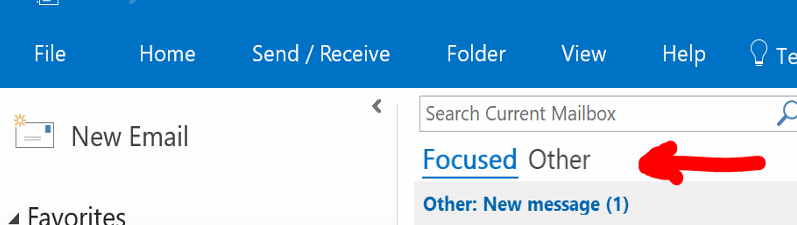
The Focused Inbox sorts email into two categories: Focused and Other. The Focused view shows email considered to be important by Outlook. The Other view shows everything else. In a perfect world, email that you consider important shows up in Focused and trash like automated notifications about stuff that I don’t really need to know about shows up in Other.
This is not a matter of sorting junk mail. Instead, Focused Inbox is all about helping people to cope better with the increasing volume of email that is in circulation today. Essentially, to help you act on the email that is most important to you and leave the other email until the time is available to review them.
How it Works
To be effective, the Focused Inbox needs to learn what is important to you. Learning occurs by building up a set of trends based on your behavior. If you move a message from the Focused view to Other, it is a sign that you do not think the message is important. Likewise, if you move a message from Other to Focused, you are telling the Focused Inbox that it has made a mistake and needs to do better in the future.
Your Outlook stores the process relates to your personal processing habits for email so that a decision to move an item on any client is equally valuable in terms of affecting future behavior. It can take some time to train the Focused Inbox to a point where you depend on it. After using Focused Inbox with the Desktop and Android app for some time, I am quite happy to check and clean out messages in the Other view once a week.
How do I get Focused Inbox for Outlook?
By this point most versions of outlook have the Focused Inbox Feature. Double check that you are on the latest version of outlook by following the steps below. If after update, you still don’t have your focused inbox, click here to learn how change your update channel. Or wait until July when all version should have the focused inbox.
- If you need to do a manual update to your Office installation to get this feature right now. Please follow the steps below to get the newest Office features.
- Open Outlook
- Click File in the top left corner
- Choose Office Account from the list on the left
- Click the Update Options button in the center of the screen
- Lastly, choose Update Now
How do I turn it On/Off?
Once the update is installed, Focused Inbox should be turned on by default. If at any time you feel this feature is not for you, it is very easy to switch back to the single Inbox functionality.
- Open Outlook
- Click on the View tab in the top bar
- Click on the checkbox for Show Focused
Help Train Your Focused Inbox
Help Train Your Focused InboxIf you notice an email in your Focused inbox that should in the Other category or vice versa, you can train the your inbox by right-clicking and selecting “Move to Other” and “Move to Focused”, respectively. Use “Always Move…” to help ensure email like those selected won’t appear in the wrong location in the future.
Procore – Locations – Let’s Get More Consisent
Are you making the most of Procore’s location features? Chances are, you’re not fully utilizing them.
Why are locations important? They pinpoint exactly where issues or opportunities exist on a project, making it easier to address them on the go using mobile devices. While locations can be used in various tools, they are especially crucial in RFIs, Daily Logs, Observations, Inspections, and Punchlists. (They’re also useful in tools like Photos, Submittals, Incidents, Change Events, and Correspondence.)
Now, let’s break down the ideal structure for locations when setting up your project:
- Project (Project Number – Project Name): This serves as a summary location for everything on the project and is always required in field sets.
- Buildings and Site Areas (Building Number – Building Name): Divide your project into buildings and outdoor areas, like E9 – McKean Hall or ET – East Tennis Courts.
- Wings / Zones / Areas (Zone Number – Zone Name): For larger buildings constructed in phases, consider breaking them into zones, such as Main Gym, Locker Rooms/Offices, Central Wing, Racketball, South Gym/Wrestling. Avoid including construction phases since they overlap the same physical location and become irrelevant after project completion.
- Levels (Level Number – Level Name): Divide your building into levels, including underground, basement, and roofs. Examples include -02 – Underground, -01 Basement, 01 – Arena Floor, 02 – Seating, 03 – Mezzanine, 04 – Lower Roof, 05 – Upper Roof.
- Units / Room Groups (Unit Number – Unit Name Unit Type): If you have groups of rooms, like a hospital department (e.g., ER – Emergency) or 101 – 2BR Apt, create tiers for these units.
- Rooms (Room Number – Room Name): Specify the names of individual rooms within spaces.
- Sub Rooms (Number – Sub Room Names): In some cases, divide large rooms into smaller ones, for instance, in cafes, restaurants, or convention/meeting spaces.
Pro tip: Always begin location names with a number or letter for better organization and searchability.
What are your thoughts? Did I miss anything important?
Setting Up Locations
To drive consistency, setup location within Location manager with these steps:
- Open Procore and navigate to your Project.
- Under Core Tools in the Project Tools section, select Admin.
- In the Sidebar, go to Project Settings section and then select Locations.
- Find the gray + 1st Tier box at the top left, click it, and enter the first tier based on your location
- breakdown structure (Typically your project number – project name). Press Enter.

- Now, select the project name item in the 1st tier, and enter buildings (or other relevant site locations) in the +2nd Tier Box based on your organization. Repeat this for additional buildings and site spaces as needed.
- Continue creating tiers for all other location levels in your organization.
Important tip: Don’t forget to check the “Only allow locations to be created in the Location Manager above” box at the bottom of the screen if you want to restrict location creation to the Location Manager.
These steps should help you efficiently set up locations in Procore while ensuring consistency throughout your project and organization. See Procore Support for more details
Best Practices
- Require locations in key fieldsets to require location, like daily logs, observations, and punch lists.
- Use Procore’s Import tool to create and update locations efficiently.
- Generate QR codes for easy field access and place them:
- On door jambs before door placement (cover with clear tape).
- Below door hinges after painting (on painter’s tape).
- On the back of panel doors after turnover.
If you want me to prioritize one of these best practices for a tech tip, please let me know in the comments.
Why is my Bluebeam so Slow – Bluebeam 2018
A couple years ago, I put together a post on how to make your Bluebeam faster. It has since turned into my number one post. So it thought I should spend a few minutes updating the post for Bluebeam 2018. My understanding is that this should be a lot better in Bluebeam 2019.
From what I have seen is that Bluebeam’s default preferences (the render setting) are supposed to make viewing faster, but typically slows it down. By changing your rendering settings in preferences, you can increase the speed at which your pages typically load. See below for details how to update your preferences. I have also included a couple other preferences changes I recommend.
What are your preferences that you update? Add them to the comments
Ever Advancing,
Ralph
Find Your Preferences
- Open Bluebeam
- Press Ctrl+K
- Or select Revu > Preferences.
Update Rendering Settings
- Select Advanced > Select 2D Rendering.
- Change Rendering Engine: to Advanced (Skia). Note, this may mess up a few other setting such at exporting to excel and word.
- Change Rendering Mode: to Wait for completion to improve overall load time.
Other preferences you might consider
General Recommendations
- Select General > Select Options.
- In User:, enter Your Full Name – Company. This will help with comments.
- In Theme, choose a “Light” or “Dark“. I prefer the “Light” theme.
Navigation
- Select General > select Navigation.
- Update Single Page Mode to scroll. This will allow the mouse scroll wheel to move from page to page in both Single Page and Continuous page view model. Use Ctrl + Scroll wheel to zoom.
Grid & Snap
- Select “General” > select “Grid & Snap“.
- Check “Snap to Content” to improve snapping for measuring and other markups.
Other Preferences
Take some time to try out difference preferences to make Bluebeam work the best for you.
- Window – WebTab – Uncheck open PDf Hyperlinks in WebTabs.
Tech Tip – Outlook – Conversations – Love Them or Hate Them?
I want to know. Do you love or hate conversation view (threaded email) in Outlook and other email clients? I believe it saves you a lot of time trying to find related emails and make it less likely to respond email that is not the latest. There are a few tricks that you should use to make conversations even better. Let me know in the comments if you love or hate conversation view?
As always, reach out if you have any questions.
Ever Advancing,
Ralph
Turn on conversations in Outlook
In your inbox, select “View” > “Show as Conversations” to turn on and off
Select “All mailboxes” or “This folder”. I suggest all mailboxes.
Manage Your Conversations
Once conversations are turned on, conversations with multiple messages will have a little arrow next to the message. Click the arrow next to the message see all messages within the conversation. The unread messages will be in bold.
Note, you can archive or move all messages in the conversation by acting upon the primary (or latest message) in the thread. Archive or move individual messages, by select each sub-message.
Also note, that by default, when a new message comes in for a conversation, it will appear in your inbox, even if you moved previous messages. You can even still see the other messages under the conversation.
Get Your Options Right
- There are a bunch of options to optimize your conversations.
- To find your conversations, select “View” > “Conversations Settings”
- Above you will see I have selected, but if you did not just want to follow my choices, here is a brief description of each:
- Show Messages from Other Folders – Show messages related to the conversation even if they are in a different folder.
- Show Senders Above the Subject Selecting – Simply makes the author of the message more prominent.
- Always Expand Selected Conversation – This one was new to me, but so far a love it. It saves a click by auto-expanding the conversation when I post it.
- Use Classic Indented View – Replies are indented below the previous “replied to” message..
Conversation view is grayed out
Make sure you are viewing by date. View > Date
If you hate it
- Un-check conversation view in Outlook – View > Show as Conversations
- Turn it off in the outlook app – Menu > Settings > Organize By Thread
References
Tech Tip – Outlook – Time to Get Focused
Every day we are bombarded by a constant flow of emails in our Outlook inbox. How often do we get notified of an incoming e-mail, or a barrage of messages, only to find out it is an auto-reply or other non-essential email? What about taking a couple days off and coming back to 100+ new messages? We lose a lot of time sifting through the non-essential in search of the messages of value.
Microsoft has a “new” solution to help in this struggle called Focused Inbox for Outlook. I place the new in quotes because this feature has been available in the Outlook mobile app for a while. As someone who uses my outlook app often, this feature has greatly helped me sift through my emails. Hopefully, it will help you too. Like this message if you are already using Focused Inbox.
As always reach out to if you have any questions. I am always looking for great tech tips, so if you have one or have a question you would like me the answer send me a message.
Ever Advancing,
Ralph
What is Focused Inbox for Outlook?
The Focused Inbox sorts email into two categories: Focused and Other. The Focused view shows email considered to be important by Outlook. The Other view shows everything else. In a perfect world, email that you consider important shows up in Focused and trash like automated notifications about stuff that I don’t really need to know about shows up in Other.
This is not a matter of sorting junk mail. Instead, Focused Inbox is all about helping people to cope better with the increasing volume of email that is in circulation today. Essentially, to help you act on the email that is most important to you and leave the other email until the time is available to review them.
How it Works
To be effective, the Focused Inbox needs to learn what is important to you. Learning occurs by building up a set of trends based on your behavior. If you move a message from the Focused view to Other, it is a sign that you do not think the message is important. Likewise, if you move a message from Other to Focused, you are telling the Focused Inbox that it has made a mistake and needs to do better in the future.
Your Outlook stores the process relates to your personal processing habits for email so that a decision to move an item on any client is equally valuable in terms of affecting future behavior. It can take some time to train the Focused Inbox to a point where you depend on it. After using Focused Inbox with the Desktop and Android app for some time, I am quite happy to check and clean out messages in the Other view once a week.
How do I get Focused Inbox for Outlook?
By this point most versions of outlook have the Focused Inbox Feature. Double check that you are on the latest version of outlook by following the steps below. If after update, you still don’t have your focused inbox, click here to learn how change your update channel. Or wait until July when all version should have the focused inbox.
- If you need to do a manual update to your Office installation to get this feature right now. Please follow the steps below to get the newest Office features.
- Open Outlook
- Click File in the top left corner
- Choose Office Account from the list on the left
- Click the Update Options button in the center of the screen
- Lastly, choose Update Now
How do I turn it On/Off?
Once the update is installed, Focused Inbox should be turned on by default. If at any time you feel this feature is not for you, it is very easy to switch back to the single Inbox functionality.
- Open Outlook
- Click on the View tab in the top bar
- Click on the checkbox for Show Focused
Help Train Your Focused Inbox
Help Train Your Focused InboxIf you notice an email in your Focused inbox that should in the Other category or vice versa, you can train the your inbox by right-clicking and selecting “Move to Other” and “Move to Focused”, respectively. Use “Always Move…” to help ensure email like those selected won’t appear in the wrong location in the future.