

A couple years ago, I put together a post on how to make your Bluebeam faster. It has since turned into my number one post. So it thought I should spend a few minutes updating the post for Bluebeam 2018. My understanding is that this should be a lot better in Bluebeam 2019.
From what I have seen is that Bluebeam’s default preferences (the render setting) are supposed to make viewing faster, but typically slows it down. By changing your rendering settings in preferences, you can increase the speed at which your pages typically load. See below for details how to update your preferences. I have also included a couple other preferences changes I recommend.
What are your preferences that you update? Add them to the comments
Ever Advancing,
Ralph
Find Your Preferences

- Open Bluebeam
- Press Ctrl+K
- Or select Revu > Preferences.
Update Rendering Settings
- Select Advanced > Select 2D Rendering.
- Change Rendering Engine: to Advanced (Skia). Note, this may mess up a few other setting such at exporting to excel and word.
- Change Rendering Mode: to Wait for completion to improve overall load time.

Other preferences you might consider
General Recommendations
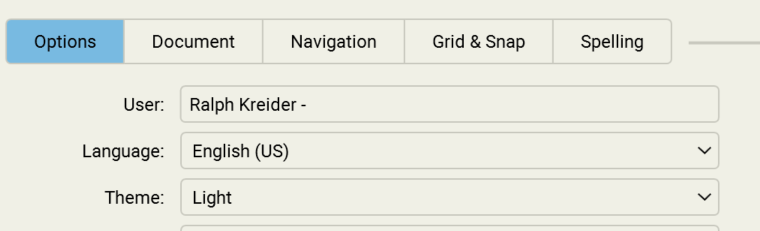
- Select General > Select Options.
- In User:, enter Your Full Name – Company. This will help with comments.
- In Theme, choose a “Light” or “Dark“. I prefer the “Light” theme.
Navigation
- Select General > select Navigation.
- Update Single Page Mode to scroll. This will allow the mouse scroll wheel to move from page to page in both Single Page and Continuous page view model. Use Ctrl + Scroll wheel to zoom.
Grid & Snap
- Select “General” > select “Grid & Snap“.
- Check “Snap to Content” to improve snapping for measuring and other markups.
Other Preferences
Take some time to try out difference preferences to make Bluebeam work the best for you.
- Window – WebTab – Uncheck open PDf Hyperlinks in WebTabs.