

I want to know. Do you love or hate conversation view (threaded email) in Outlook and other email clients? I believe it saves you a lot of time trying to find related emails and make it less likely to respond email that is not the latest. There are a few tricks that you should use to make conversations even better. Let me know in the comments if you love or hate conversation view?
As always, reach out if you have any questions.
Ever Advancing,
Ralph
Turn on conversations in Outlook
In your inbox, select “View” > “Show as Conversations” to turn on and off
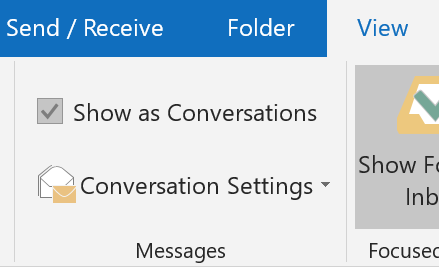
Select “All mailboxes” or “This folder”. I suggest all mailboxes.
Manage Your Conversations
Once conversations are turned on, conversations with multiple messages will have a little arrow next to the message. Click the arrow next to the message see all messages within the conversation. The unread messages will be in bold.
Note, you can archive or move all messages in the conversation by acting upon the primary (or latest message) in the thread. Archive or move individual messages, by select each sub-message.
Also note, that by default, when a new message comes in for a conversation, it will appear in your inbox, even if you moved previous messages. You can even still see the other messages under the conversation.
Get Your Options Right
- There are a bunch of options to optimize your conversations.
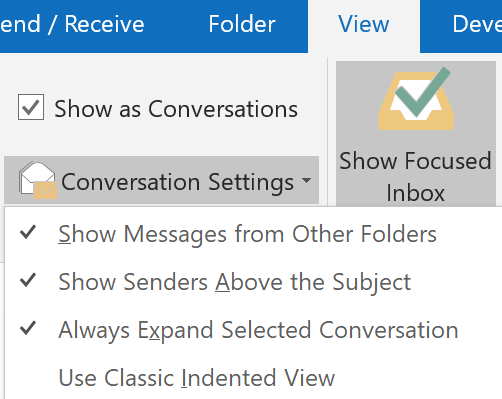
- To find your conversations, select “View” > “Conversations Settings”

- Above you will see I have selected, but if you did not just want to follow my choices, here is a brief description of each:
- Show Messages from Other Folders – Show messages related to the conversation even if they are in a different folder.
- Show Senders Above the Subject Selecting – Simply makes the author of the message more prominent.
- Always Expand Selected Conversation – This one was new to me, but so far a love it. It saves a click by auto-expanding the conversation when I post it.
- Use Classic Indented View – Replies are indented below the previous “replied to” message..
Conversation view is grayed out
Make sure you are viewing by date. View > Date

If you hate it
- Un-check conversation view in Outlook – View > Show as Conversations
- Turn it off in the outlook app – Menu > Settings > Organize By Thread